Docker lets you run applications inside lightweight, isolated environments called containers. A container bundles your code, libraries, and dependencies into a single package, ensuring that your application runs exactly the same way in development, testing, and production.
This isolation solves the classic “it works on my machine” problem. When you work in a team or deploy to a cloud server, you do not have to worry about mismatched software versions or conflicting dependencies on the host machine. Containers are also highly scalable and easy to move across different servers, making them ideal for modern, cloud-native deployments.
💡 Need Docker command reference? Check out our quick-reference Docker & DevOps Cheatsheet for essential commands, container management, and compose workflows.
Here is a look at the basic architecture of Docker:
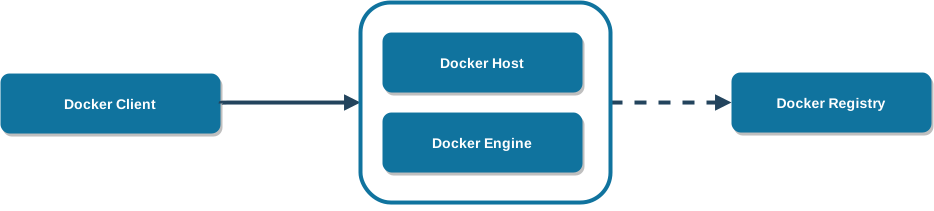
- Docker Engine: The core runtime that runs on your host machine to build and manage containers.
- Docker Client: The command-line interface you use to interact with the engine.
- Docker Registry: A storage system for sharing and pulling container images. Docker Hub is the default public registry.
- Docker Host: The physical or virtual machine running the engine.
Dockerizing a React and Node.js application
Here is how you can set up a basic React application inside a container.
1. Install Docker
Download and install the community edition from the Docker website.
Tip: Docker Desktop is the standard graphical interface. If you are on macOS or Linux and prefer a lighter, open-source alternative, Colima is an excellent way to run the Docker daemon.
2. Create a React app
If you do not have a React application, you can quickly generate one using the command line:
npx create-react-app my-app
cd my-app
3. Create a Dockerfile
A Dockerfile contains the step-by-step instructions to build your container image. Create a file named Dockerfile in your project’s root folder:
FROM node:18

WORKDIR /app

COPY package.json package-lock.json /app/

RUN npm install

COPY . /app

EXPOSE 3000

CMD ["npm", "start"]
This configuration tells Docker to start with a Node 18 base image, set the working directory to /app, install dependencies, copy your source files, and start the development server on port 3000.
4. Build the image
Run the build command from your terminal:
docker build -t my-app .
The -t flag tags the resulting image with the name my-app.
5. Run the container
Start the container and map port 3000 from the container to port 3000 on your machine:
docker run -p 3000:3000 my-app
Open http://localhost:3000 in your browser to see your containerized React application running.
Conclusion
Docker containers provide a lightweight and consistent way to run your software across different environments. By packaging all of your application’s requirements directly into an image, you eliminate environment mismatch issues and simplify deployment.